Business Unit Setup
Last updated: 6/17/2026
Setting up a business unit is an important first step for your tenant.
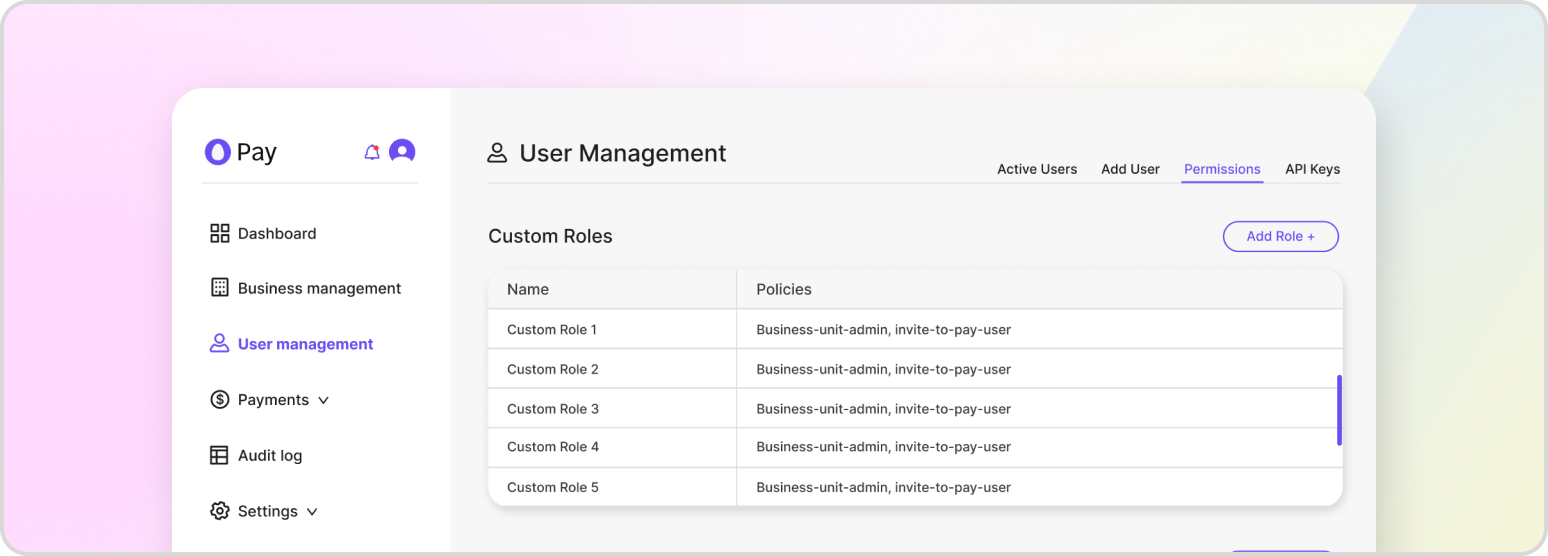
Before creating a business unit or payment orchestrator, it helps to understand what each one is. A business unit represents a distinct entity within your organization, such as a department or branch. A payment orchestrator lives inside a business unit and connects it to a payment gateway, defining which payment methods are accepted and how funds are routed.
Creating a Business Unit
Create a business unit by calling the endpoint below. The request specifies the business unit’s name and the timezone used for accounting purposes.
POST /v1/business-unit/business-units
{
    "name": "My First Business Unit",
    "timezone_name": "America/New_York"
}
The full list HatchPay supports can be retrieved at any time with GET /v1/business-unit/timezones; commonly used values include:
America/New_York
America/Chicago
America/Denver
America/Los_Angeles
America/Anchorage
America/Adak
Pacific/Honolulu
America/Phoenix
America/Boise
Creating a Payment Orchestrator
Once your business unit exists, attach a payment orchestrator. In the tenant console, go to “Business Management,” select the business unit, open the “Payment Orchestrators” section, choose the three-dot menu, select “Add Payment Orchestrator,” complete the form, and save.
All fields are necessary except the iFrame URL and Tokenizer API URL, which are only needed for I2P. The iFrame URL allows the customer to input their credit card information in HatchPay’s payment interface, while the Tokenizer API URL is the endpoint for converting the credit card information into a token that HatchPay can use for capturing the payment. Both are provided by the payment gateway, including every other field except the payment orchestrator’s name and accepted payment methods. If there are no options for the gateway authentication information field, first create a payment gateway credential.
You can also create an orchestrator directly through the API:
POST /v1/business-unit/business-units/{business_unit_id}/payment-orchestrators
{
    "name": "Primary Payment Orchestrator",
    "business_unit_id": "7288e738-7a93-40ba-889f-3bdd37ab1d18",
    "order": 0,
    "payment_methods": ["CREDIT_CARD"],
    "payment_gateway_id": "d3b47371-b7be-47a8-972f-4d4c85f1e0ae",
    "payment_gateway_auth_info_id": "a4a6f1aa-8357-4436-8e92-e0bcdb8541c6",
    "gateway_url": "<YOUR_GATEWAY_URL>",
    "iframe_url": "<YOUR_GATEWAY_IFRAME_URL>",
    "tokenizer_api_url": "<YOUR_GATEWAY_TOKENIZER_API_URL>"
}
Creating Payment Gateway Credentials
A payment orchestrator needs credentials to connect to its gateway. You can configure these in the tenant console — select your business unit, expand “Payment Orchestrators,” click “Edit,” open the menu next to “Gateway Authentication,” and choose “Add Gateway Auth.” Once saved, the credential becomes selectable when adding or editing an orchestrator.
You can also create the credential through the API. The example below stores authentication for the Tempus gateway:
POST /v1/business-unit/payment-gateways/{payment_gateway_id}/auth-info
{
    "name": "Tempus Custom Configuration",
    "description": "Custom authentication for Tempus gateway",
    "auth_type": "Custom",
    "auth_config": {
        "RNID": {
            "location": "body",
            "value": "<TEMPUS_RNID>"
        },
        "RNCERT": {
            "location": "body",
            "value": "<TEMPUS_RNCERT>"
        }
    },
    "payment_gateway_name": "TEMPUS"
}
Gateway credentials are encrypted at rest and never returned in plain text. The list of available gateways can be retrieved with GET /v1/business-unit/payment-gateways.