Business Unit
Last updated: 6/17/2026
Business units are one of the fundamental building blocks for how HatchPay benefits your tenant.
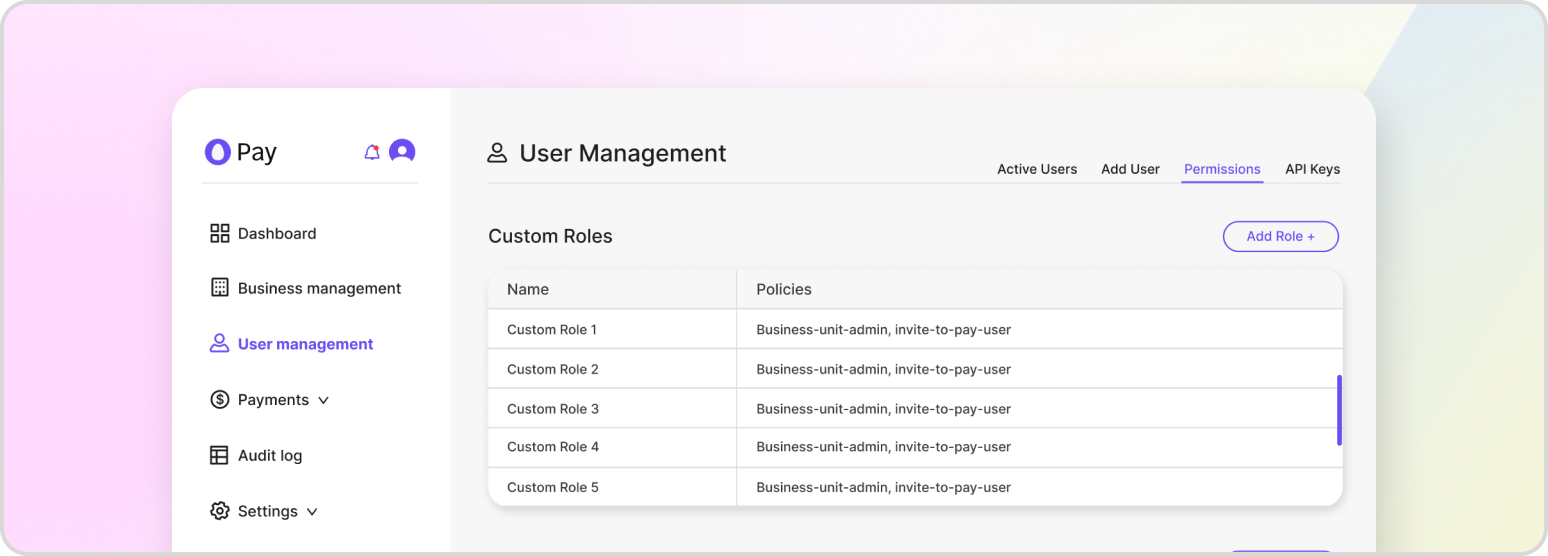
A business unit is a core piece of HatchPay configuration. It is a logical entity that groups transactions and gives you a way to organize and manage payments and related financial data. A business unit can represent a separate organization, branch, or office, depending on how you want to structure your account.
A business unit has five configurable sections:
-
Payment Orchestrators: Connect the business unit to one or more payment gateways and the payment methods they support.
-
Communication: Choose how SMS and email are sent for this business unit — using HatchPay’s communication service or your own provider. See Communications.
-
Branding: Set the name and logo customers see on the payment screen, for example during an Invite2Pay flow.
-
Accounting: Control whether transactions are tracked at end of day and whether a settlement file is generated.
-
Notifications: Manage the webhooks that fire when specified events occur.
Creating a Business Unit
Using HatchPay requires at least one business unit. If you do not have one yet, follow Business Unit Setup. Review your business unit settings periodically to make sure they still reflect how your business operates.
Viewing all Business Units
List every business unit in your tenant. Your tenant is determined from your credentials, so no tenant identifier is needed in the path:
GET /v1/business-unit/business-units
Viewing a specific Business Unit
GET /v1/business-unit/business-units/{business_unit_id}
Updating a Business Unit
Update a business unit’s details, such as its name and timezone_id:
PATCH /v1/business-unit/business-units/{business_unit_id}
{
    "name": "Test Business Unit",
    "timezone_id": "a4cf107b-8a79-4529-8649-268952f7a0df",
    "branding_title": "Business Unit"
}
Deleting a Business Unit
DELETE /v1/business-unit/business-units/{business_unit_id}
Managing a Business Unit from the Tenant Console
You can also manage a business unit from the “Business Management” section of the tenant console. When viewing a business unit this way, a modal will appear that will let you to update and delete it.